Overview
This article provides a comprehensive guide on how to create, format, and edit topics within a discussion forum. It also includes instructions on how to insert hyperlinks that open in a new tab and how to manage post attachments and polls.
Information
- Creating a New Topic
- Formatting your Post
- Editing your Topic Post
- Set URL Link to Open in a New Browser Tab
Creating a New Topic
- Navigate to the Discussions Homepage and click on the + New Topic button to open the editor.
- Enter the Title of your topic, ensuring it is at least 15 characters long.
- Select the appropriate Category for your topic to increase engagement.
- Compose your topic content using the text editor and format it as needed.
- Utilize the preview pane to review your post before publishing.
- Check for similar topics suggested by the editor to avoid duplicates.
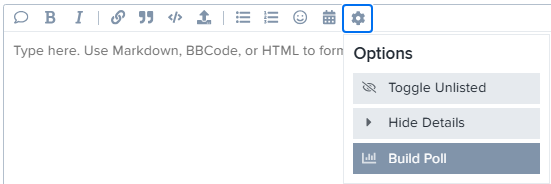
- If you would like to create a poll, click the gear icon and select Build Poll
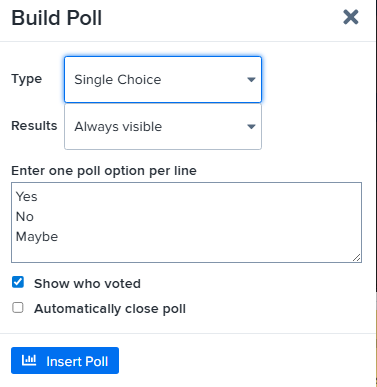
- Clicking Build Poll will open an options menu, here you can select options like showing who voted, automatically closing the poll at a certain date/time, etc.
- Your poll options are entered in plain text, one per line as seen in the screenshot below, once you have made all your selections, click Insert Poll to add it to the new topic you are creating. NOTE: Clicking Insert Poll will not make the topic live, this will bring you back to the topic creation menu where you can continue to customize the topic before publishing.
Publishing
Once you have customized your topic and you are ready to make it live, publish your topic by clicking the + Create Topic button.
Formatting your Post
Learn about the various formatting tools available in the topic/post body editor toolbar, such as quoting, bolding, italicizing text, inserting hyperlinks, creating quotes, adding preformatted text, uploading images or files, creating lists, adding emojis, and more.
Editing your Topic Post
- Click the ellipses (...) under the post and select the pencil icon to edit.
- Add a reason for your edit in the slide-out editor.
- Save your edits and note the orange pencil icon indicating an edit history.
- Review the historical edits by clicking on the orange pencil icon.
Set URL Link to Open in a New Browser Tab
To have URL links open in a new tab, insert them using HTML code with the target="_blank" attribute.
FAQ
How do I create a new topic in a discussion forum?
To create a new topic, navigate to the Discussions Homepage, click on the + New Topic button, enter the title and content, select a category, and then publish by clicking the + Create Topic button.
What formatting options are available for my post?
The editor toolbar offers options to quote text, bold, italicize, insert hyperlinks, create quotes, format text, upload images or files, create lists, add emojis, and more.
How can I edit my topic post?
Click the ellipses (...) under your post, select the pencil icon to edit, make changes, and then click Save Edit. An orange pencil icon will indicate the post has been edited.
How do I make URL links open in a new tab?
Use the HTML code format with the target="_blank" attribute to insert URL links that open in a new tab. Example: <a href="https://example.com/" target="_blank">Example Site</a>.
Priyanka Bhotika
Comments